Clock · Apple Watch
Clock in from your wrist.
Bill nobody for it.
One WidgetKit Control toggles a work session on or off with a single tap — Control Center, the Smart Stack, or the Ultra's Action button. The running total lives on your watch face. No launching, no monthly fee.

Features
Start, stop, and see your hours.
One-tap Control
A WidgetKit Control you can place in Control Center, the Smart Stack, or on the Ultra Action button.
Total on your face
A complication shows whether you're on the clock and for how long — a glance, not an app.
Projects & tags
Assign a session to a project and switch right from the wrist.
One-time price
Undercuts Toggl, Harvest, and Clockify with a single purchase — no subscription, ever.
How it works
Three steps, then it's just there.
Add the Control
Drop the Clock Control into Control Center, the Smart Stack, or the Action button.
Tap to clock in
One tap starts the session. Tap again to stop. No app launch.
Glance at the total
The running time sits on your watch face all day.
Screenshots
See it on the wrist.
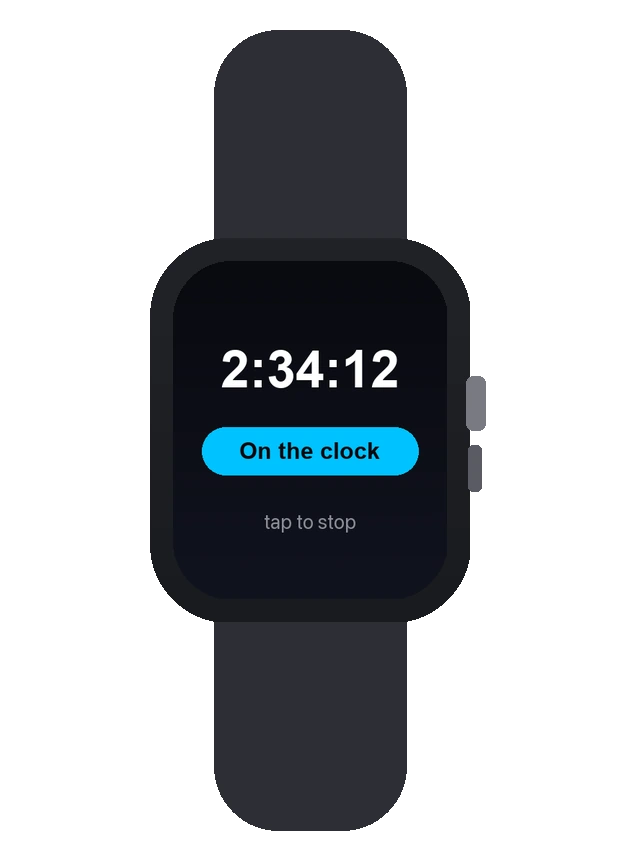
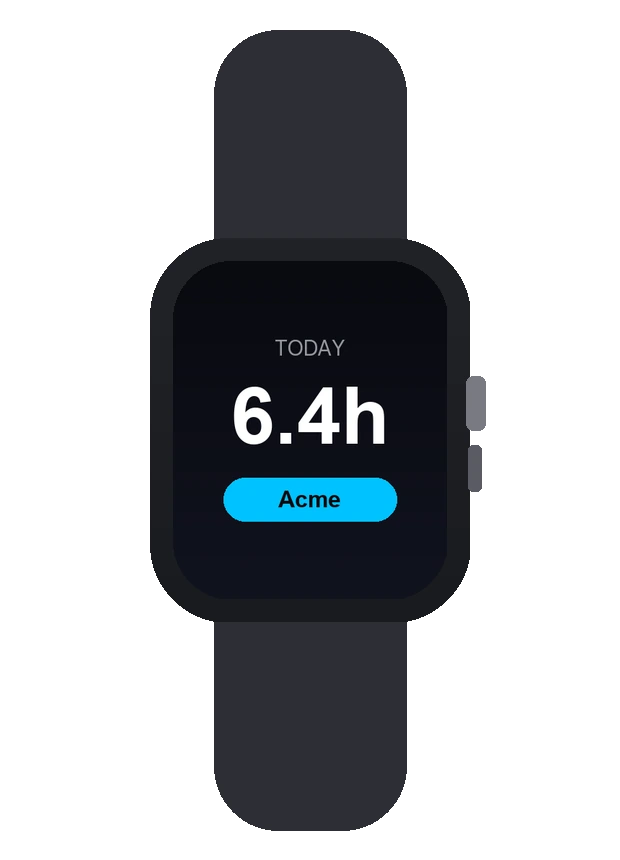
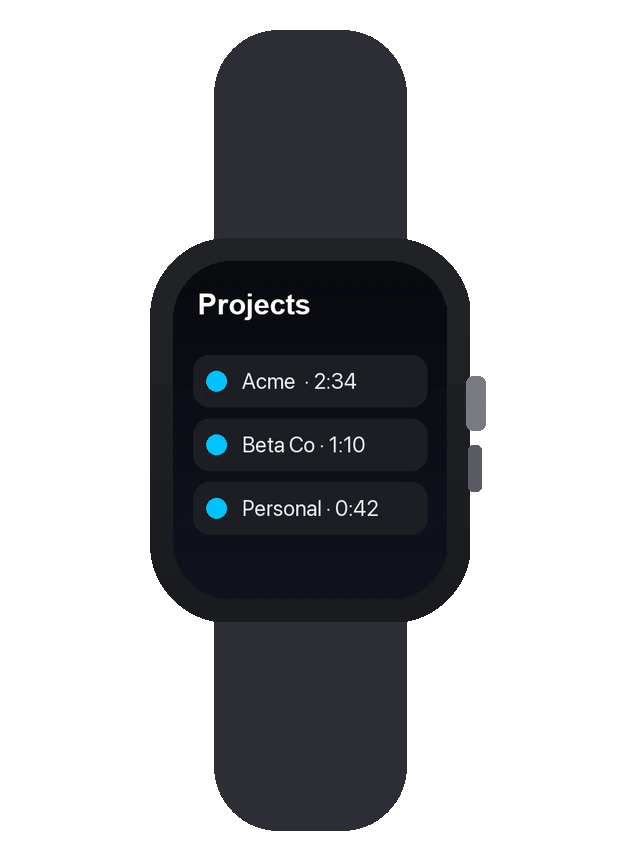
Design preview — final App Store screenshots before launch.
Pricing
One price. Yours forever.
A single one-time purchase — buy Clock once and keep every feature for good. No subscription, ever.
Clock One-time
$4.99 · one-time purchase · yours to keep
- One-tap WidgetKit Control
- Running total complication
- Projects & tags
- CSV export of your hours
- One-time price, no subscription
FAQ
Quick answers.
Is there a subscription?
No. Clock is a one-time purchase — a deliberate alternative to the monthly time-trackers.
Where does the toggle live?
In a WidgetKit Control: Control Center, the Smart Stack, or the Apple Watch Ultra's Action button.
Do I need watchOS 26?
The one-tap Control needs watchOS 26; the timer and complication run on watchOS 11+.